

Introduction
Many organisations are turning to virtualisation of apps and desktops. This often involves virtualisation platforms such as Citrix to deliver these services.
Get your configuration or lock-down wrong and you’ll find users ‘breaking out’ of the environment you thought you had secured. It might not be long after that when you find that your entire domain has been compromised.
There are plenty of guides out there for break out of controlled desktop environments, but in our experience, none have yet brought together a comprehensive guide.
This is our attempt to do so; we hope you find it useful. However, this is an evolving document: despite significant effort and research going into this, you can guarantee that we haven’t covered every attack vector. If you think we’ve missed something, please flag it to us and we’ll include it, crediting you and the original source (if it wasn’t you that found it!).
The example below is demonstrated on both Windows 10 and Windows 11 machines. All are valid for both operating systems.
(First published by Michael Yardley on 06/05/2014, updated by Kieran Larking on 02/03/2026)
Index
- Dialog Boxes
- Abusing Dialog Boxes
- Environmental Variables / Bypassing Path Restrictions
- Gaining a Command Shell
- Task Manager
- Task Scheduler
- Powershell.exe
- FTP
- Bypassing Write Restrictions
- Bypassing Executable Restrictions
- Microsoft Edge
- Default / Weak Credentials
- File Transfer – Getting data to and from your target
- Useful System / Administrative Tools
- Shortcuts
- RDP / Citrix Shortcuts
- Batch Files and Scripts
- Juicy Files and Data
- Binary Planting
- Conclusion
Dialog Boxes
Acquiring a dialog box is often the first port of call in breakout testing, and is usually an effective method of gauging if any obvious attempts have been made to harden the system.
Even when you’re presented with only a lowly instance of Notepad, there can be options available.
It is not uncommon for the most innocuous and simplistic of applications to lead to the compromise of a client’s Domain and entire estate. This is often referred to as the “snowball” effect, where one small issue leads to another, gradually increasing in severity and risk.
Many of the standard Windows applications that are available typically offer some way of opening a dialog box:
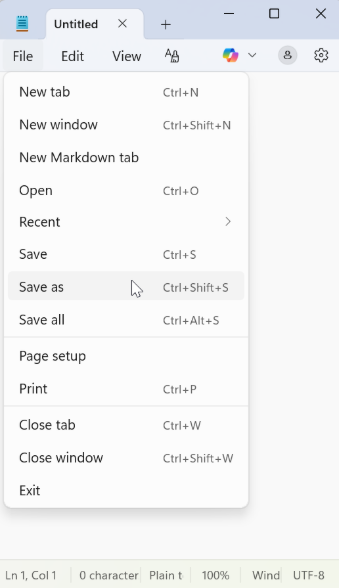
Naturally, various methods exist that can be used to bring up a dialog, however simple examples are:
- “Save as” / “Open as” option
- “Print” feature – selecting “print to file” option (XPS/PDF/etc)
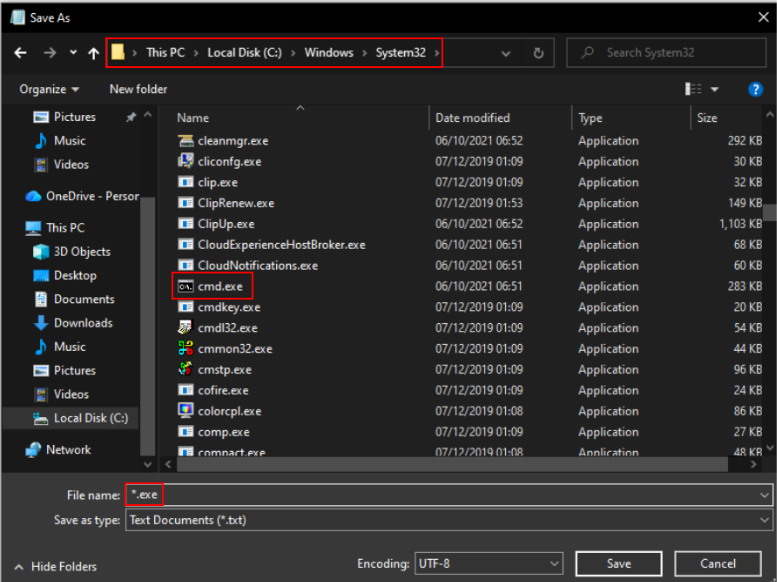
Abusing Dialog Boxes
Once a dialog is open, this can be used as a pivot point to start exploring the system or escalating privileges. This is often only limited to your creativity, however we have a few ideas:
-
- Creating new files
- Batch files – Right click > New > Text File > rename to .BAT (or .CMD) > edit > open
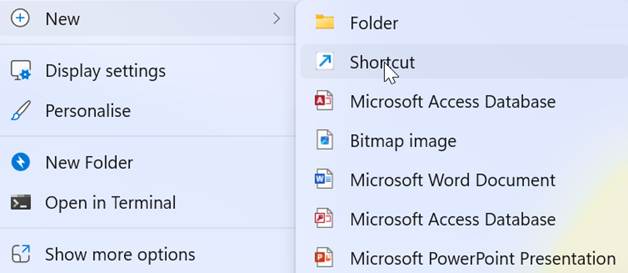
- Shortcuts – Right click > New > Shortcut > “%WINDIR%\system32”
- Open a new Windows Explorer instance
- Right click any folder > select “Open in new window”
- Exploring Context Menus
- Right click any file/folder and explore context menus
- Clicking “Properties”, especially on shortcuts, can yield further access via “Open File Location”
- Creating new files
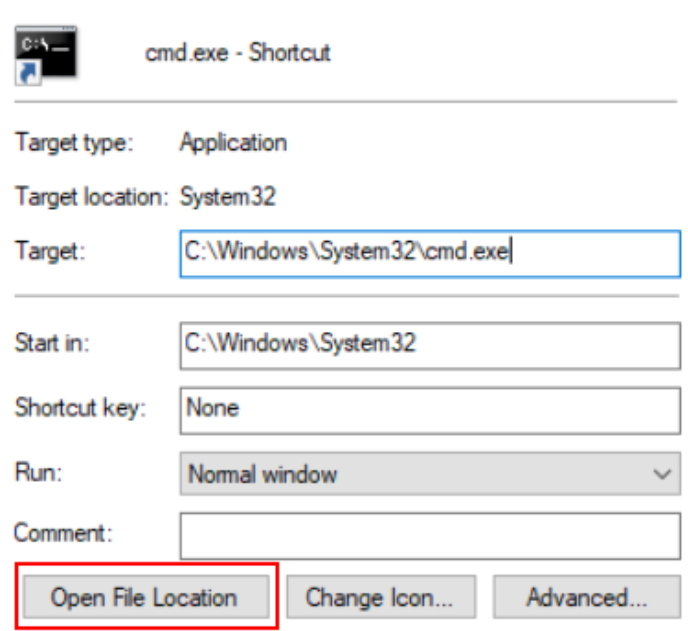
- Input Boxes
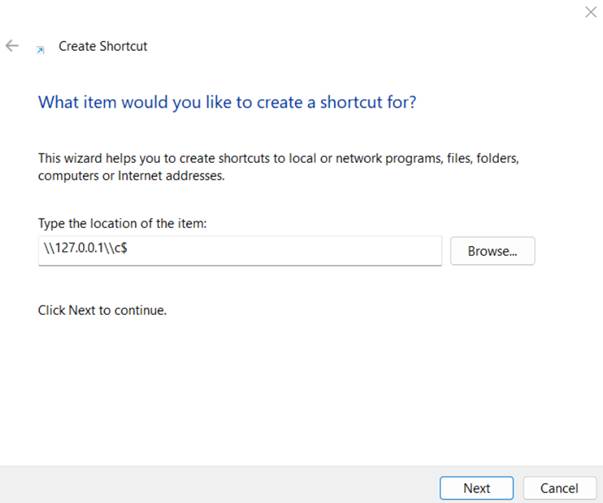
- Many input boxes accept file paths; try all inputs with UNC paths such as “//attacker–pc/” or “//127.0.0.1/c$” or “C:\”
- Bypass file restrictions
- enter *.* or *.exe or similar in “File name” box
Environmental Variables / Bypassing Path Restrictions
In some systems where minimal hardening has taken place, it may not be possible to browse directly to an obvious directory such as C:\Windows\System32. There are however various symbolic links that one can use to potentially bypass this restriction.
%ALLUSERSPROFILE%
%APPDATA%
%CommonProgramFiles%
%COMMONPROGRAMFILES(x86)%
%COMPUTERNAME%
%COMSPEC%
%HOMEDRIVE%
%HOMEPATH%
%LOCALAPPDATA%
%LOGONSERVER%
%PATH%
%PATHEXT%
%ProgramData%
%ProgramFiles%
%ProgramFiles(x86)%
%PROMPT%
%PSModulePath%
%Public%
%SYSTEMDRIVE%
%SYSTEMROOT%
%TEMP%
%TMP%
%USERDOMAIN%
%USERNAME%
%USERPROFILE%
%WINDIR%
shell:Administrative Tools
shell:DocumentsLibrary
shell:Librariesshell:UserProfiles
shell:Personal
shell:SearchHomeFolder
shell:System shell:NetworkPlacesFolder
shell:SendTo
shell:UserProfiles
shell:Common Administrative Tools
shell:MyComputerFolder
shell:InternetFolder
File protocol handlers can also be a useful avenue for opening up applications that would otherwise be unavailable:
about:
data:
ftp:
mailto:
news:
res:
telnet:
view-source:
UNC Paths are commonly accepted, even on systems with quite substantial hardening in place:
\\127.0.0.1\c$\Windows\System32 Gaining a Command Shell
Gaining access to a Command Shell of some description can be an early win in breakout testing and enables a great amount of control over the Operating System, including the potential to enumerate a lot of information that can help us escalate our privileges further.
Typically, we have a few different executable options to gain a shell on a system:
- Cmd.exe
- COMMAND.COM
- Powershell.exe
- Third party admin / shell tool]
“Run”
Quite possibly the easiest method available. Can be accessed via the Start Menu, or with the shortcut Windows+R:
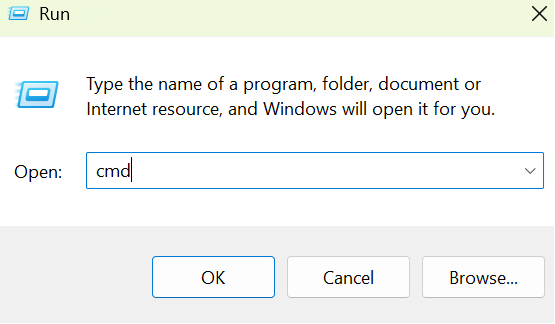
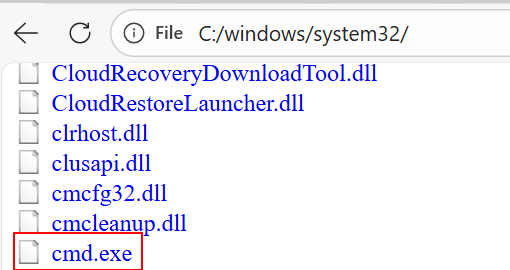
Access through file browser:
A simple yet effective attack. By browsing to the folder containing the binary (i.e. “C:\windows\system32\”), we can simply right click and “open” it:
Drag-and-drop:
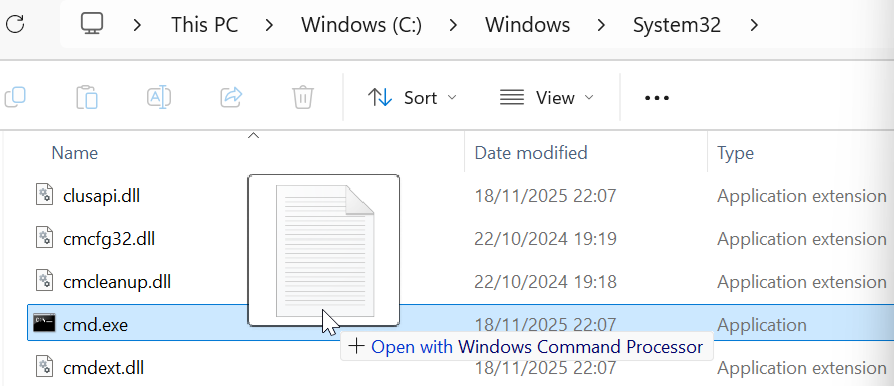
By dragging and dropping any file, even those with invalid extensions (i.e. *.txt) onto the cmd.exe file will cause a Command Prompt window to be launched
Task Manager
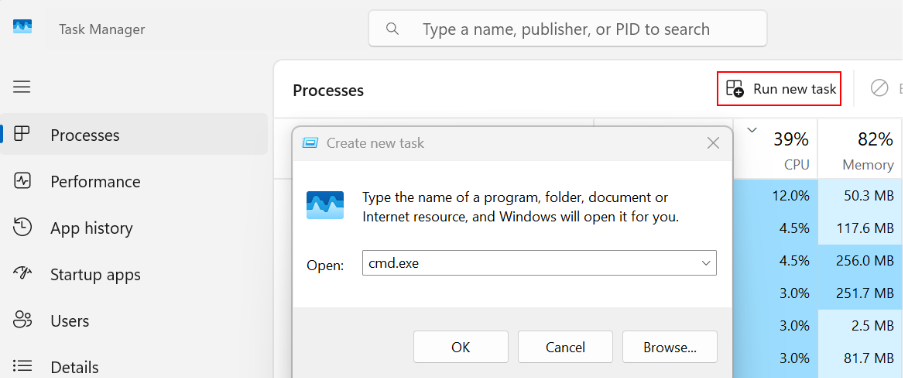
The Windows Task Manager can be useful to us for a number of reasons. Additionally, it can be used to run new processes. Task Manager (taskmgr) can be accessed in a number of ways, including from the Start Menu, the CTRL+ALT+DELETE splash page in newer versions of Windows and via the direct shortcut CTRL+SHIFT+ESCAPE.
Task Scheduler
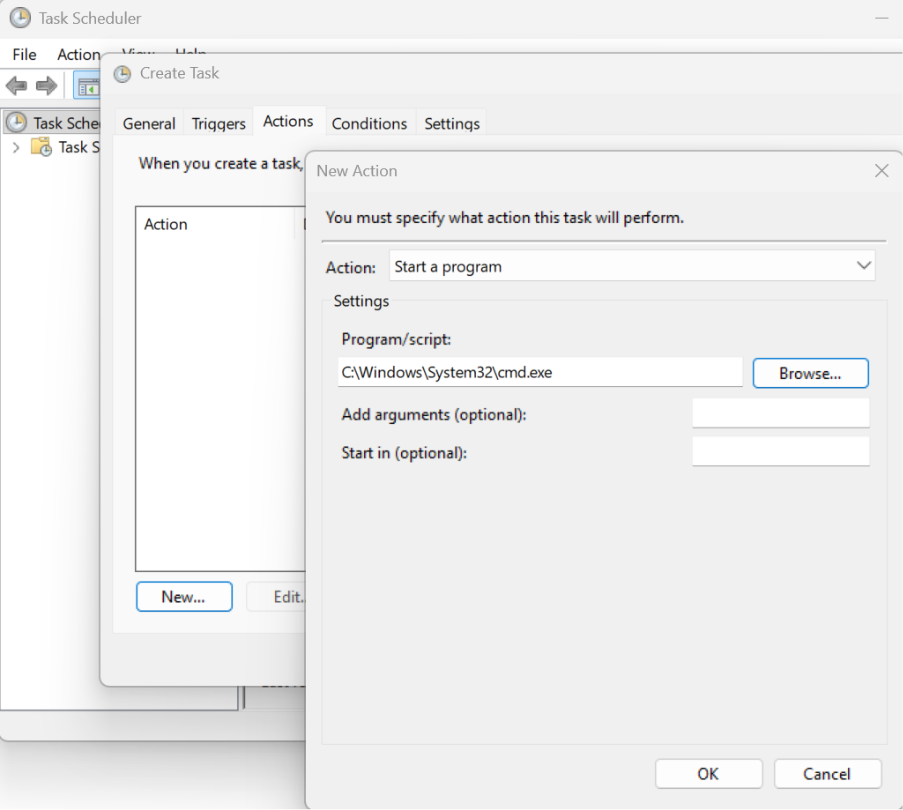
An interesting weakness, where some systems prevent access to cmd.exe, however it can still be scheduled to run via Task Scheduler. This can be done either via the command line scheduler (at.exe) or the GUI (taskschd.msc). A basic task can be created to run cmd.exe at a specific time (i.e. 1 minute in the future) or upon certain events such as when a user logs on.
Powershell.exe
A similar experience to cmd.exe, however PowerShell has some several advanced features over regular cmd.exe such as the ability to use and call features and assemblies in .NET.
MSPAINT.exe (Deprecated)
An unusual, yet effective method of gaining a shell by creating a shortcut to cmd.exe by drawing certain colours in Microsoft Paint. Due to the encoding algorithm used to write BMP files, it is possible to dictate ASCII data written into a file by carefully selecting certain RGB colours.
It should be noted that this method only works up until Windows 7, so anything after is not vulnerable. However, it’s well worth noting as it’s an interesting trick! This is demonstrated on Windows XP:
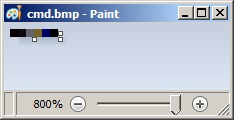
- Open MSPaint.exe and set the canvas size to: Width=6 and Height=1 pixels
- Zoom in to make the following tasks easier
- Using the colour picker, set pixels values to (from left to right):
- 1st: R: 10, G: 0, B: 0
- 2nd: R: 13, G: 10, B: 13
- 3rd: R: 100, G: 109, B: 99
- 4th: R: 120, G: 101, B: 46
- 5th: R: 0, G: 0, B: 101
- 6th: R: 0, G: 0, B: 0
- Save it as 24-bit Bitmap (*.bmp;*.dib)
- Change its extension from bmp to bat and run.
FTP
Whilst not yielding full command shell access, the FTP client is usually available and can offer a method of browsing the file system via the “!dir” command if all other avenues are blocked. It may also serve as an avenue for data transfer, i.e. downloading 3rd party tools.
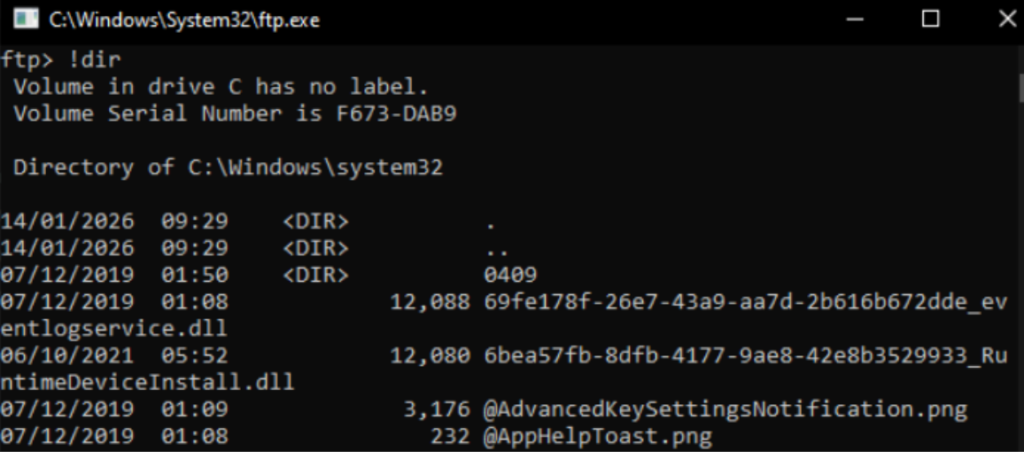
Other useful FTP commands:
!whoami
!date
!ping 127.0.0.1
Bypassing Write Restrictions
This is a useful time to mention ways that can be used to bypass write restrictions on the environment you’re testing. This will help to find an area to upload third party tools and write any data to from enumeration processes.
Best practice dictates that a user should have the lowest amount of write privileges without being detrimental to their work. In practice, this can mean very limited write permissions on the hosts local file system.
Temporary folders are a good first port of call and nearly always allow write access. Enumerate the default temp location by finding the value of the %TEMP% variable, e.g. “echo %TEMP%”. Folder names are usually along the lines of:
- C:\Users\USER\AppData\Local\Temp
- C:\temp\
- C:\tmp\
Writing to the %USERPROFILE% directory can be another tactic, however this may link to a network shared folder.
Accesschk.exe
This tool is available within the Sysinternals Suite and offers similar functionality to the built in “cacls” / “icacls”.
We can use this to find directories on filesystems that allow us write access:
accesschk.exe -uwdqs Users c:\
accesschk.exe -uwdqs “Authenticated Users” c:\
Bypassing Executable Restrictions
Some systems have rudimentary whitelists in place that only allow applications to run that have a specific filename or file extension. This can sometimes be trivial to bypass, by renaming malware.exe to an allowed value such as mspaint.exe.
Other poor configurations allow any application to be run as long as directory meets whitelist criteria. If the system you are testing allows Microsoft Word to run, try copying your file to the same directory as WINWORD.EXE.
Microsoft Edge
Many web applications are deployed using technology such as Citrix / Terminal Service / Kiosk platforms. Of course, for functionality, this means that a Web Browser will need to be available to access the application. 9 times out of 10, this would have been Internet Explorer in the past. However, with the latest Windows 11 and possibly Windows 10, which is till quite widely used despite being deprecated, Microsoft Edge is the default browser.
File and Upload Dialogs
Modern Edge relies on standard Windows file-picker dialogs for uploads.
Incorrect policies may expose:
- Local profile folders
- Mapped network drives
- Redirected / shared locations
- Writable temp directories
File‑picker dialogs are one of the most common areas where breakout opportunities appear if the environment is misconfigured.
Downloads Bar and File Handling
The Edge downloads shelf can reveal:
- The Downloads directory
- The actual filesystem path
- Options to “Show in Folder” or open the default handler for file types
If these elements aren’t controlled via:
- WDAC/AppLocker
- Citrix App Protection Policies
- Edge Enterprise Policies (e.g., DownloadRestrictions)
…then users may be able to interactwith local folders beyond what was intended.

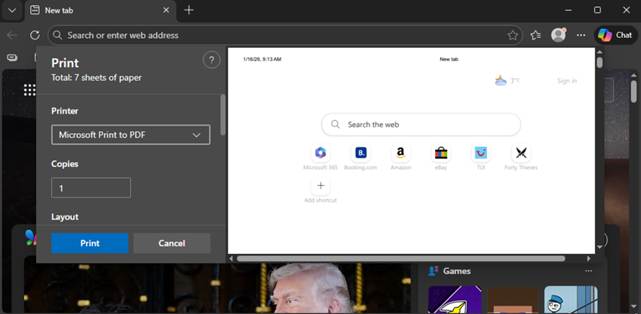
Printing and Print Dialogs
Print dialogs in Edge can expose:
- CTRL + P
- “Microsoft Print to PDF”
- “Save to PDF”
File‑save dialogs opening system locations
Poorly restricted save paths here lead to similar dialog breakout risks as upload windows
Developer Tools (F12)
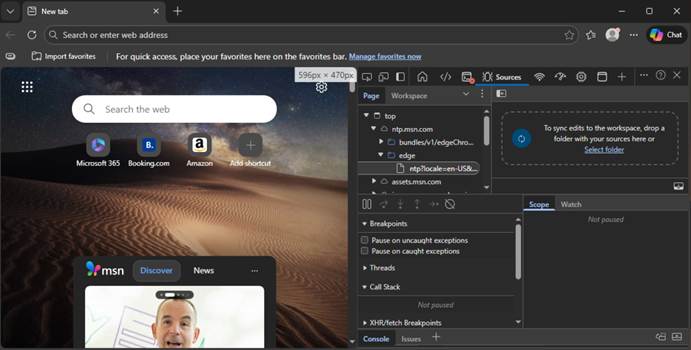
Edge’s DevTools are significantly more locked down than IE’s F12 tools.
However, in some environments they can still provide:
- Access to internal DOM/resources
- Ability to view network requests
- Access to JavaScript console
- Access to storage, cookies, local/session storage
If DevTools are not disabled for kiosk/VDI contexts, users may be able to:
- Interact with the underlying application in unexpected ways
- Extract sensitive tokens
- Modify page behaviour
Edge’s DevTools can be disabled through GPO or Citrix policies and should be in restricted environments.
Extensions, PWAs, and Browser Add‑Ons
Microsoft Edge supports:
Extensions
Progressive Web Apps (PWAs)
WebAssembly
Background services (when permitted)
Uncontrolled extension installations can open pathways to:
- Local file access
- Network tunnelling
- Clipboard monitoring
- Arbitrary code execution (in the context of the user profile)
Administrators should enforce:
ExtensionInstallBlocklist
ExtensionInstallAllowlist
ExtensionInstallSources
Through Microsoft Edge ADMX templates.
Downloads and Native Application Handlers
If a user can download a file and the system can launch:
- Default PDF reader
- Office applications
- Image viewers
- Script interpreters
…then the breakout surface expands considerably.
Administrators should ensure:
- WDAC/AppLocker policies block unauthorized executables
- File associations are restricted
- “Open file after download” is disabled via Edge enterprise policy
Default / Weak Credentials
In any environment, there is obvious value in looking for default user/password combinations or accounts that are using a weak password such as, well, “password”!
Where possible, attempt to enumerate a list of valid usernames before your attack. Look for verbose error messages that disclose whether an account actually exists, e.g. “This username does not exist” vs “Incorrect Password”. “Forgotten password” functionality can also indicate whether a user exists or not.
If you already have authentication and can access a shell, try commands such as “net users” or “net users /domain”.
Obvious usernames, such as the below, are always worth exploring. It is not uncommon for usernames to be reused as passwords:
- Test
- Citrixtest
- Administrator
- Admin
- Guest
- Backup
- Default
File Transfer – Getting data to and from your target
- FTP
- HTTP servers (WAMP / LAMP / publicly available tools on the internet / etc)
- SMB to client \\hacker\tools
- SMB to server \\server\c$
- DNS tunnelling
- Email – personal / corporate
- Clipboard
- Streaming data via user-input
- Device pass-through
- RS323 / serial
- Bluetooth
- TeamViewer “run in memory” option
Some of these methods involve setting up a server on your attack infrastructure, however this is trivial, and Kali Linux has many of these services built in ready to be activated.
DNS Tunnelling:
An interesting concept that relies on the fact that, even in highly restrictive environments, DNS queries may be allowed through to the internet. We have a separate blog post with a how-to.
Email:
If a web browser is available, it may be possible to email data to and from the host using personal email accounts such as Gmail. Depending on firewall rulesets and network filtering, connections via protocols such as POP3 / IMAP / SMTP may be worth exploring.
Full Desktop Environments may have access to a corporate email system, which could be used in a similar fashion. However, it is worth noting that many corporate email solutions, especially for larger firms, will be using some form of content filtering on attachments. This can often be bypassed by including any data within an encrypted archive, i.e. ZIP.
Clipboard:
Data can be sent via clipboard for use on the host machine. Binary files can be base64 encoded and potentially reconstructed on the remote system for execution. Alternatively, assembly language can be copied via clipboard to the remote system and executed using debug.exe.
Streaming data via user-input:
By exploiting the standard method of user input (keyboard/mouse), it is possible to create an automated script that mimics user-input to send arbitrary data. Data can be slowly streamed and reconstructed on the other side.
Reprogrammable Human Interface Devices (HIDs) such as the well-known Rubber Ducky can be used for this type of attack. More information on this can be found in another of our blog posts found here.
Device pass-through:
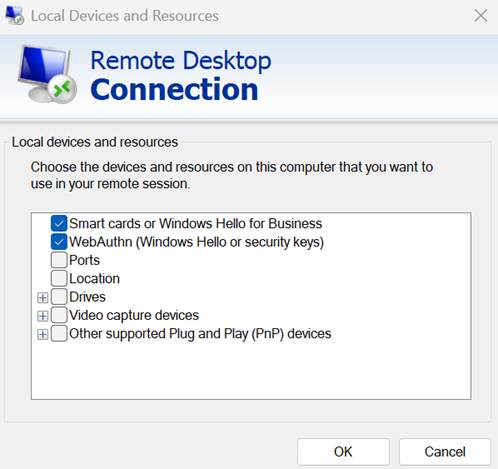
Depending on the environment in use, it may be possible to “pass-through” local hardware devices such as a USB Storage Device to the remote host. Certain client tools such as Microsoft Remote Desktop Protocol and Citrix Receiver will actually automatically pass through devices automatically; however, this can be manually changed if necessary.
For Microsoft Remote Desktop Protocol, start the Terminal Services client (mstsc.exe) and select the “Local Resources” tab. Press the “More…” button at the bottom of the window. From here, it is possible to select what local devices and drives you would like to pass through to the remote host:
This can be performed in a similar fashion for Citrix Workspace by going into the hotbar and going on the “Devices” tab:

Device pass-through (RS232 / Serial):
Allowing devices such as serial ports to be connected via the device pass-through feature could allow an easy method of transferring data between the host and the server. The serial port can be emulated locally on the attacker’s machine and used to stream data over to the server. Data can be received on the server side using a terminal application such as Windows HyperTerminal or a custom-built receiver built in assembly using debug.exe if available.
Bluetooth:
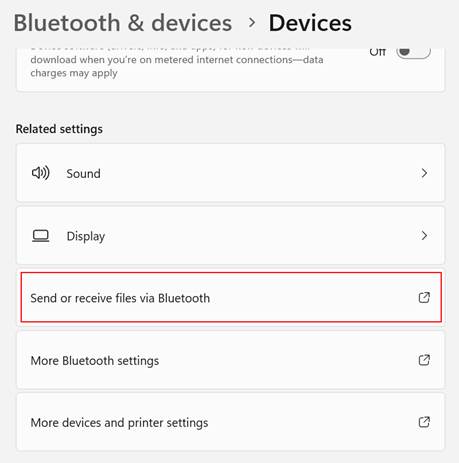
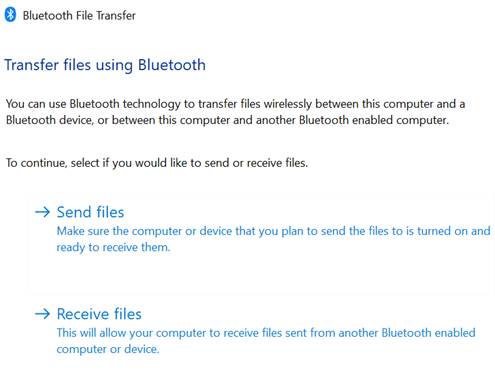
Most all-in-one devices such as laptops are equipped with Bluetooth. As well as allowing the use for Bluetooth audio devices and hardware like keyboards, it can also be used to transfer files. This can be found on Windows 10 / 11 devices by going to “Settings” > “Bluetooth & devices” > “Devices” and scrolling down to find “Send or receive files via Bluetooth”:
Here you have the option to send or receive files. Obviously, this method will only work will a physical device and is not applicable to Citrix environments:
TeamViewer:
The TeamViewer setup executable has an option to run a standalone version in memory, rather than having to install the program full to the device’s disc.
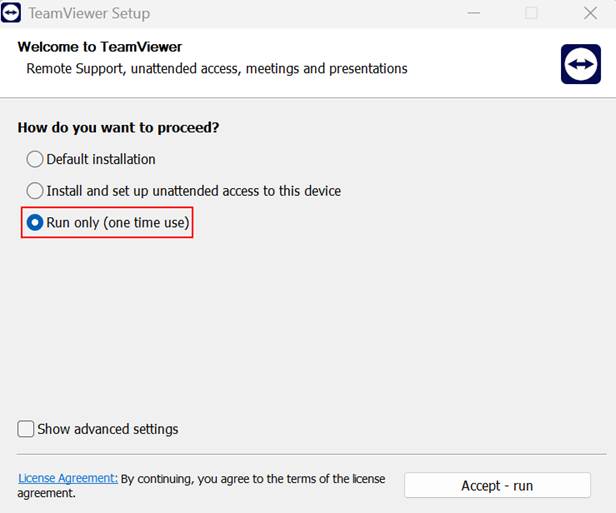
It is quite rare for corporate device restriction solutions, or policies, to detect non-malicious applications running in memory without installation.
If firewall rules permit, it is then possible to start a TeamViewer session with another device of choice which then offers remote control, clipboard access and unlimited file transfer possibilities.
This method is restricted by the fact that the TeamViewer setup .exe must be transferred to the target device using one of the aforementioned methods in order for it to work. This can be difficult using methods such as email as the setup file is around 80MB in size and is usually too big to be an attachment.
Useful System / Administrative Tools
Many of the default tools built into Windows for admin purposes can be overlooked when hardening takes place and as a result can be available to us. The vast majority of these can be ran using methods covered earlier in the article:
- MMC.exe – Microsoft Management Console, allows a large degree of control over the system using “snap-ins”
- Mstsc.exe – Microsoft Terminal Services, can allow remote desktop connection to another host
- Regedit.exe – Registry control
- Taskmgr.exe – Task Manager
- Control.exe – Control Panel shortcut
- Rundll32.exe – An alternative method of accessing areas of the OS that may be hidden via native API calls
- Dxdiag.exe – DirectX diagnostic tool, useful for enumerating system information
- Msconfig.exe – System configuration, shows verbose system information and has links to system tools
- Eventvwr.exe – Local events viewer
- Systeminfo.exe – Command line system info collector
- Msinfo32.exe – System Information
- Osk.exe – On Screen Keyboard, can be useful in Kiosk style environments where no keyboard is available
- At.exe – Task Scheduler (Deprecated on Windows 11/ 10 in favour of SCHTASKS.exe. However, can still be abused if not blocked.
- Taskschd.msc – Task Scheduler GUI
- Explorer.exe – Brings up a new instance of Windows Explorer
- WMIC.exe (deprecated on Windows 11)
- Qwinsta.exe – Displays information about RDP sessions
- Tasklist.exe / qprocess.exe – List process information
It is often worth hunting for other local Microsoft and 3rd Party executables that you have access to, e.g:
“dir /s %WINDIR% *.exe”
Rundll32:
There is a vast array of commands that can be run via Rundll32, we have included a few examples that could come in useful:
Stored Usernames and Passwords:
RunDll32.exe keymgr.dll,KRShowKeyMgrControl Panel:

RunDll32.exe shell32.dll,Control_RunDLLDate and Time Properties:

RunDll32.exe shell32.dll,Control_RunDLL timedate.cplDevice Manager:

RunDll32.exe devmgr.dll DeviceManager_Execute
Folder Options – General:
RunDll32.exe shell32.dll,Options_RunDLL 0Forgotten Password Wizard:
RunDll32.exe keymgr.dll,PRShowSaveWizardExWKeyboard Properties:
RunDll32.exe shell32.dll,Control_RunDLL main.cpl @1Lock Screen:
RunDll32.exe user32.dll,LockWorkStationNetwork Connections:
RunDll32.exe shell32.dll,Control_RunDLL ncpa.cplOpen With Dialog Box:
Rundll32 Shell32.dll,OpenAs_RunDLL FILE.extPrinter User Interface:
Rundll32 Printui.dll,PrintUIEntry /?System Properties Box:
Rundll32 Shell32.dll,Control_RunDLL Sysdm.cpl,,3Windows Firewall:
RunDll32.exe shell32.dll,Control_RunDLL firewall.cplWindows About:
RunDll32.exe SHELL32.DLL,ShellAboutWWMIC.exe:
WMIC (Windows Management Instrumentation Command-Line) is a powerful command line tool that can be very useful for information gathering.

WMIC is a very broad tool, so we will only cover it briefly with a few examples:
Local shares:
wmic share list /format:tableLocal Users:
wmic useraccount list fullLocal Users – Output to HTML file:
wmic /output:c:\users.html useraccount list full /format:hformProcesses:
wmic process list full
Services:
wmic service list full
Software:
wmic os lsit full
Installed patches / service packs / hotfixes:
wmic qfe
Shortcuts
As with most Operating Systems, there is a shortcut for pretty much every commonly used function in Windows. Some of these can be very useful when the hardening that has taken place is superficial, e.g. only removing Start Menu links.
Standard Operating System Shortcuts:
Standard operating system shortcuts can be created throughout various areas of Windows, it’s worth bringing up the context menu in areas such as the Desktop or Explorer and then linking to one of the resources mentioned in this article, i.e. %WINDIR%\system32\cmd.exe.
Accessibility shortcuts:
Many of these shortcuts exist to offer accessibility features such as “Sticky Keys” and “Mouse Keys”. Pressing the correct combination will bring up a pop-up dialog, which can be used to gain access to Windows Settings. We can use then use the Windows Settings as a pivot point:
- Sticky Keys – Press SHIFT 5 times
- Mouse Keys – SHIFT+ALT+NUMLOCK
- High Contrast – SHIFT+ALT+PRINTSCN
- Toggle Keys – Hold NUMLOCK for 5 seconds
- Filter Keys – Hold right SHIFT for 12 seconds
Other standard shortcuts exist which may be useful. Some may be application specific:
- WINDOWS+F1 – Windows Search
- WINDOWS+D – Show Desktop
- WINDOWS+E – Launch Windows Explorer
- WINDOWS+R – Run
- WINDOWS+U – Ease of Access Centre
- WINDOWS+F – Search
- SHIFT+F10 – Context Menu
- CTRL+SHIFT+ESC – Task Manager
- CTRL+ALT+DEL – Splash screen on newer Windows versions
- F1 – Help
- F3 – Search
- F6 – Address Bar
- F11 – Toggle full screen within Internet Explorer
- CTRL+H – Internet Explorer History
- CTRL+T – Internet Explorer – New Tab
- CTRL+N – Internet Explorer – New Page
- CTRL+O – Open File
- CTRL+S – Save
- CTRL+N – New
RDP / Citrix Shortcuts
Citrix and Microsoft Remote Desktop Protocol (RDP) have their own set of shortcuts or “hotkeys” that correspond to Operating system functions or other unique actions.
Remote Desktop Hotkeys:
- CTRL+ALT+END – Opens Windows Security dialog box
- CTRL+ALT+BREAK – Switches between windowed and full-screen
- ALT+INSERT – Cycles through windows
- ALT+HOME – Displays start menu
- ALT+DELETE – Displays control / context menu
- CTRL+ALT+NUMBER PAD MINUS – Takes screenshot of active window onto RDP clipboard
- CTRL+ALT+NUMBER PAD PLUS – Takes screenshot of entire RDP session onto RDP clipboard
Citrix ICA Hotkeys:
SHIFT+F1 – Displays Windows Task List
SHIFT+F2 – Toggles title bar
SHIFT+F3 – Closes remote application / Citrix connection
CTRL+F1 – Displays Windows NT Security desktop
CTRL+F2 – Displays remote task list or Start Menu
CTRL+F3 – Displays task manager
ALT+F2 – Cycles through maximised and minimised windows
ALT+PLUS – Cycles through open windows
ALT+MINUS – Cycles through open windows (reverse)
Batch Files and Scripts
Batch files such as .BAT and .CMD can be an alternative for executing system commands when an interactive shell isn’t permitted. Whilst .BAT files can be disabled, the lesser known .CMD equivalent can sometimes be allowed.
Windows Script Hosts (WSH):
Providing access hasn’t been disabled and we can run either the “cscript.exe” or “wscript.exe” executables, we can use WSH to run a variety of different scripting languages, including VBScript, VBA and JScript by default.
As an example, we can execute the following VBScript snippet by saving the contents within a .VBS file. Using this code, it may be possible to launch a CMD shell:
set objApp = CreateObject(“WScript.Shell”)

objApp.Run “CMD C:\”
The VBS file can be run by double clicking on the file, or by passing the filename as an argument to either cscript.exe or wscript.exe.
Any other languages that the system has support for can also be potentially abused, e.g. Python, Perl, PHP, etc. It is worth checking for these. Java, for example, is commonly installed on a lot of hosts. The javac.exe and java.exe executables can be used in a similar fashion to the example above.
Juicy Files and Data
It is always worth scouting for juicy data that could help you (very quickly) escalate your privileges. There’s always that one person who can’t resist storing every password they have within a plaintext file.
Use any method in your arsenal to search for files:
Windows Explorer
Windows Search
Command Line
“dir c:\ /s juicy.txt”

“dir c:\ /s *password* == *cred* == *vnc* == *.config*”
Enumerate applications that may store interesting data:
- VNC – ultravnc.ini, etc
- Apache – httpd.conf, .htaccess etc
- KeePass / similar applications
Interesting Registry Entries:
- reg query “HKCU\Software\ORL\WinVNC3\Password”
- reg query “HKLM\SOFTWARE\Microsoft\Windows NT\Currentversion\Winlogon”
- reg query “HKLM\SYSTEM\Current\ControlSet\Services\SNMP”
- reg query” HKCU\Software\SimonTatham\PuTTY\Sessions”
Files to look out for:
- sysprep.inf
- sysprep.xml
- %WINDIR%\Panther\Unattend\Unattended.xml
- %WINDIR%\Panther\Unattended.xml
- %WINDIR%\debug\NetSetup.log
- %WINDIR%\repair\sam
- %WINDIR%\repair\system
- %WINDIR%\repair\software
- %WINDIR%\repair\security
- %WINDIR%\system32\config\AppEvent.Evt
- %WINDIR%\system32\config\SecEvent.Evt
- %WINDIR%\system32\config\default.sav
- %WINDIR%\system32\config\security.sav
- %WINDIR%\system32\config\software.sav
- %WINDIR%\system32\config\system.sav
- %USERPROFILE%\ntuser.dat
Citrix ICAClient cached connections:
Cached connection information may be available in local application data stores. Look for the “ICAClient” directory, which is usually found within the %APPDATA% folder. Using “dir /s ICAClient” from a command line will also work.
By copying another user’s ICAClient contents into your own folder, it may be possible to hijack their stored connections.
Group Policy Preference saved passwords:
If the machine you’re testing is part of a domain, and you have access to the relevant SYSVOL network share that usually resides on the Domain Controller itself, then it is worth looking for the “cPassword” value stored within various XML files that may be hanging around. This can be performed by manually browsing SYSVOL and browsing for the relevant files:
- Groups.xml
- Services.xml
- ScheduledTasks.xml
- Printers.xml
- Drives.xml
- DataSources.xml
The “cPassword” attribute is encrypted via AES, however this is using a static key which is available on the internet including directly from Microsoft via various MSDN articles.
Binary Planting
Binary planting involves intentionally placing malicious code in a location where it will be run by a vulnerable application or service. This usually requires a “perfect storm” of several weak configurations to be effective.
Weak Windows Service Permissions:
A common vector is to target weak Windows services and file/folder permissions. As demonstrated earlier, the Sysinternals accesschk.exe tool comes in handy for this kind of enumeration.
First, be sure to check specifically what user group you reside in. For a low privilege user, this is probably going to be the standard “Authenticated Users” group.
Now we need to enumerate services that allow us to modify them:
accesschk.exe -uwcqv “Authenticated Users” *
If any services are returned, then we choose one as a target.
Many services run as SYSTEM, so by having write access to such a service, we can effectively run any application we want with the highest privilege level possible.
sc config SERVICENAME binpath= “C:\malicious.exe” -e
C:\WINDOWS\System32\cmd.exe”
sc config SERVICENAME obj= “.\LocalSystem” password =””
net stop SERVICENAME
net start SERVICENAME
DLL Hijacking:
Applications usually can’t run by themselves, and instead rely on a pool of resources that they hook into. This is often in the form of code libraries such as DLLs. Generally, Windows applications follow a pre-set path on the hunt for a DLL and will check each location in order:
- The directory from which the application loaded
- 32-bit System directory (C:\Windows\System32)
- 16-bit System directory (C:\Windows\System)
- Windows directory (C:\Windows)
- The current working directory (CWD)
- Directories in the PATH environment variable (system then user)
If we can place our malicious DLL earlier along the path, then the application will quite likely load our malicious code.
Conclusion
Going by the fact there are nineteen sections to this blog, there are a huge array of different techniques that can lead to breakout! As a result, it is very difficult to harden all of these areas fully as this would either impact the functionality of the service the device delivers or is simply overlooked.
We would recommend that any remote environment is configured in a pragmatic fashion, where the bare minimum of functionality is offered to users to enable them to carry out their tasks. This serves the purpose of reducing the overall attack surface that is available.
All default configurations should be tweaked and hardened to minimise any possible routes that an attacker may use to “break out” or escalate their privileges.