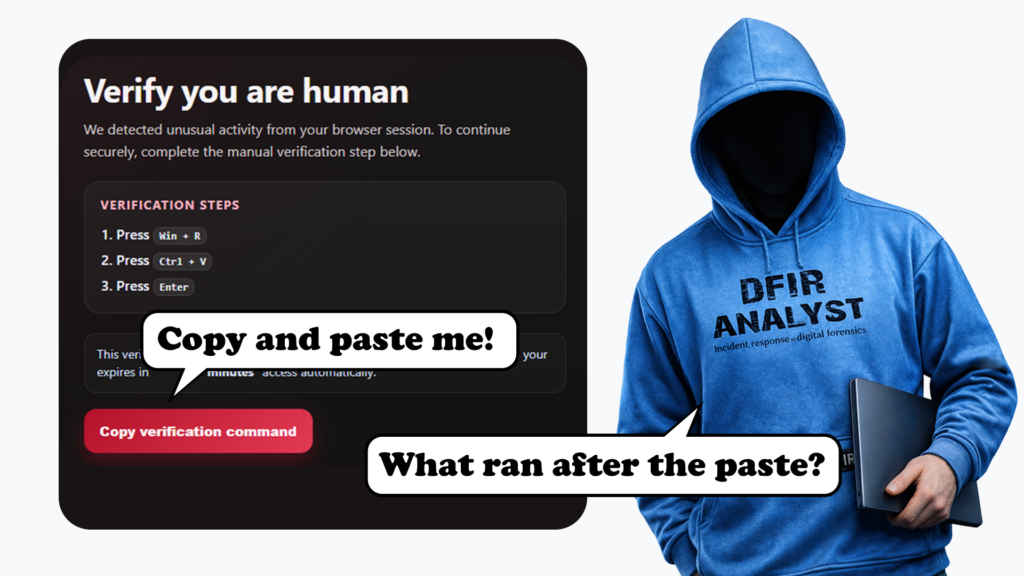


TL;DR
- ClickFix-style attacks are continuing to evolve, with variants including CrashFix, InstallFix and FileFix
- The lure changes, but the core technique is the same: tricking users into copying and running attacker-provided commands.
- For defenders, the important evidence is often not the landing page, but the process chain, dropped files, persistence, staging activity and network connections left behind.
Introduction
At the start of this year, I wrote a blog on how 2025 was the ‘year of the infostealer’, and it doesn’t look like that is going to change anytime soon. We’re now into June and the ‘fix’ attacks have continued to soar as they did last year. The difference now is that the lure has become easier to package, easier to scale, and easier to explain away as something ordinary.
The variations continue to evolve
To name a few, we’ve had:
- ClickFix
- CrashFix
- InstallFix
- FileFix
They’re all variations of the same social engineering trick, which sounds easy to avoid. Get the user to copy, paste and run the command themselves. It isn’t just a Windows problem, as I evidenced in my recent blog post. The attack involved a fake installer, credential theft, data staging, and attempted exfiltration.
Underneath the ‘fix’ is the same core idea: present the user with an easy solution to a problem they think they have. The prompt tells the user that their browser has crashed, their installer has failed, or a verification step is needed. The ‘fix’ is to copy and run a command. You need to update Homebrew? Don’t worry, just copy and paste this command! No traditional exploit chain. No attachment needed. The user is persuaded to perform the first step for the attacker to gather their sensitive information.
Huntress reported a 631% increase in ClickFix-related incidents over a six-month period, and Microsoft has described the macOS focused infostealer campaigns as the same broad model, including fake copy and paste terminal prompts. They have become a reliable initial access route for attackers trying to deliver stealers and follow-on payloads.
The typical ‘Fix’ attack chain looks something like this:

I have created some example PenTestPartnersFix lure landing pages below, both for ClickFix and CrashFix. In a real campaign, these pages are usually made to look like familiar services, such as CAPTCHA checks or browser recovery prompts.
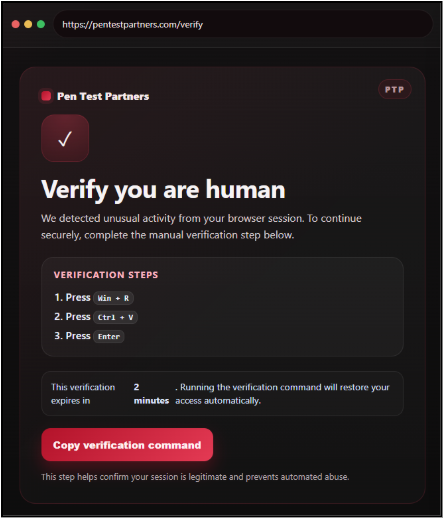
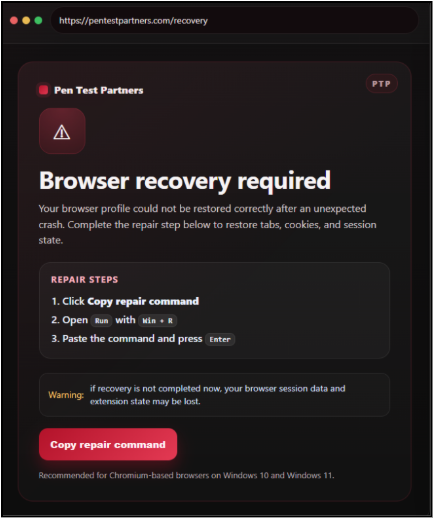
The trick is to make the user think they are ‘fixing’ the problem they have, but here’s a benign example of what you might expect to find when copying those fixes.
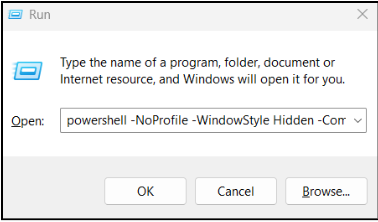
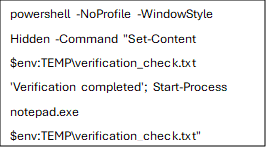
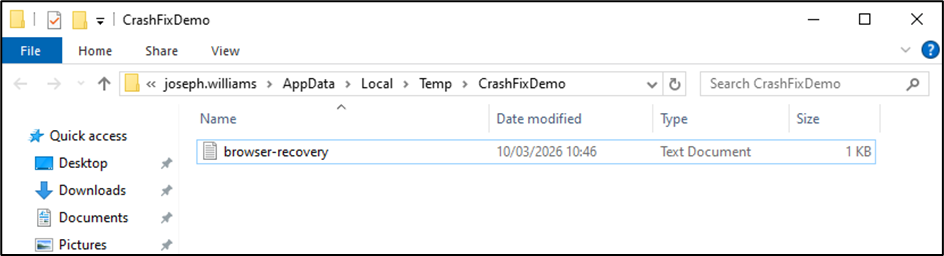
What this does
powershell
Starts a new PowerShell process.
-NoProfile
Tells PowerShell not to load the user’s profile scripts. That makes execution more predictable and a bit faster.
-WindowStyle Hidden
Starts the PowerShell window hidden, so the user does not see a console pop up.
-Command “…”
Runs the PowerShell code inside the quotes.
Set-Content $env:TEMP\verification_check.txt ‘Verification completed’
Creates or overwrites a file called verification_check.txt in the user’s temp folder and writes the text Verification completed into it.
$env:TEMP means the current user’s temporary directory, for example:
C:\Users\ExampleUser\AppData\Local\Temp
Start-Process notepad.exe $env:TEMP\verification_check.txt
Launches Notepad and opens that text file.
Maliciously, the structure is the same. The object being created or launched changes, an attacker would swap those safe actions for something like this:
1. Drop and run a payload
Instead of writing verification_check.txt, the command writes a script, DLL, or executable into %TEMP% or another user-writable location, then launches it.
That then becomes:
- Create file in temp
- Save malicious content there
- Execute it
- Remove obvious traces
So the text file step becomes the first stage of payload delivery.
2. Fetch the next stage from the internet
Rather than embedding the payload directly, the pasted command often acts as a downloader. That means it:
- Starts a hidden shell
- Reaches out to a remote server
- Downloads the next stage into temp
- Launches it
That is common because the first pasted command stays short and less obviously suspicious.
3. Run a script directly in memory
Sometimes there is no obvious .exe written first. The command may fetch or decode a script and execute it in memory, then let that script handle the rest.
From an Incident Response Digital Forensics (DFIR) point of view, you may see:
- PowerShell activity
- Network retrieval
- Child processes
- Temp artefacts from later stages
4. Use trusted system tools as the launcher
Instead of directly starting an .exe, attackers often hand off to native Windows tools so the chain blends in better. Think, Living off the land, when attackers join your IT team
For example, they may use built-in scripting or execution hosts to:
- Run a script
- Load a DLL
- Execute an HTA
- Spawn the real payload
That is why these attacks often look like normal OS activity at first glance.
What comes next
After this comes the stealing of browser cookies, passwords, and tokens. The collection of files from the user profile. The data staged, ready to be exfiltrated. The beaconing to the command and control server. The creation of persistence using run keys and scheduled tasks and the ability to add additional malware.
Same result, different method
Microsoft’s February 2026 CrashFix reporting is a good example of how quickly a copy-and-paste lure becomes a full compromise. In that case, the victim was first nudged towards a malicious browser extension masquerading as uBlock Origin Lite. After a delay, the extension destabilised the browser and presented a fake recovery prompt. Once the victim pasted the supplied command, Microsoft observed abuse of finger.exe, a renamed copy of it dropped as ct.exe, obfuscated PowerShell, a follow-on script.ps1 saved to AppData\Roaming, a portable WinPython package, and a Python RAT executed with pythonw.exe. Microsoft also saw persistence via a Run key, and in some chains, a scheduled task named SoftwareProtection.
New Clickix variant ‘CrashFix’ deploying Python Remote Access Trojan | Microsoft Security Blog
Another recent example of that is the malicious npm package posing as an OpenClaw installer, covered by JFrog in March 2026. This is not a classic fake CAPTCHA or fake browser repair page. Instead, it abuses a workflow developers already trust. Install a package, run the setup command, and follow the prompt. Underneath though, it is the same broad idea.
JFrog found the malicious package @openclaw-ai/openclawai on npm, uploaded on 3rd March 2026. The package used a postinstall hook to reinstall itself globally, then pointed the openclaw binary at an obfuscated setup.js first-stage script. That script displayed a convincing fake CLI installer, then prompted the victim for their system password using a keychain authorisation message. While the victim was busy with the fake install flow, the malware fetched an encrypted second-stage payload from trackpipe[.]dev, decrypted it, wrote it to a temporary file, launched it as a detached background process, and deleted the temp file after 60 seconds.
What that looks like from a DFIR point of view
By the time you get called in, the fake verification page is usually long gone. The victim often cannot remember exactly what they clicked, only that they were trying to fix something, install something, or get rid of an annoying prompt. That is fairly typical with these cases. The lure gets the attention, but from an investigative point of view, the more interesting part is what happened after the paste.
Whether it’s ClickFix, CrashFix, InstallFix or FileFix, the defender’s problem is usually the same. A browser session turns into user-driven execution in a trusted interface. After that, the malware still has to do typical malware things: fetch the next stage, establish persistence, collect data, stage it, and try to get it out. The social engineering is just the bridge into the host.
A DFIR approach to the attack
Once the user has pasted and run the command, I stop caring what the lure was called. At that point, I want to know what launched, what it pulled down, where it landed and what it changed.
On Windows, I start with the process chain. Explorer into PowerShell. Browser into cmd.exe. cmd.exe into mshta.exe, wscript.exe, rundll32.exe, or something else that should not be involved in a normal browser session. I want the command lines, not just the process names. There is a big difference between seeing that PowerShell ran and seeing that PowerShell ran hidden, contacted a remote host, wrote a payload into a user-writable directory, and launched it.
On macOS, it’s the same thing, just in different places with different names. Terminal history, shell history, curl, osascript, chmod, xattr, launchctl. Anything written under /tmp, /private/tmp, ~/Library, or a hidden user directory.
I would also look for what happened immediately afterwards. New files, new archives, persistence and network connections.
What I pull straight away
On Windows, think process creation logs, PowerShell Operational logs, network connections, scheduled tasks, run keys, and file metadata for %TEMP%, %APPDATA%, Roaming, Downloads, and anything else created around the execution window.
I want to know what was created, what was modified, and what was launched from where.
With Windows logging, I would point back to our earlier blog post on the built-in Windows security features you should be using. If command-line process auditing, PowerShell logging, and the rest of the native visibility are not already enabled, I am already ten steps behind.
On macOS, I pull shell history, Terminal artefacts, Unified Log around the time of execution, current process and network state, anything written under /tmp, any new LaunchAgents or LaunchDaemons, login items, and background items. If the payload used a temp path, staged data into an archive, or set persistence through launchd, I want that before a cleanup script gets rid of it for me.
Assume the attacker brought their dustpan and brush
One mistake I think people make with these attacks is assuming that because the lure is simple, the tradecraft afterwards will be simple too. Do not assume that. We know that isn’t the case.
Temporary folders might already be gone. Archives may have been deleted once the data left the machine. Shell history can be edited, timestamps can be changed, and persistence may only exist long enough to survive a reboot.
If a machine stays in use after the incident, or somebody helpfully reboots it before the right artefacts are collected, the puzzle becomes harder to put back together. A simple reboot can destroy in-memory-only payloads, volatile network connections and live process trees. What is left is usually enough to tell you something happened, but not always enough to tell you how far it got.
A list of artefacts to look out for
The lure matters at the start. The remnants left behind matter afterwards.
On Windows, that usually means:
- process creation and command lines
- writable-path execution
- PowerShell activity
- dropped scripts, HTAs, DLLs or renamed binaries
- run keys
- scheduled tasks
- forensic artefacts such as prefetch, shimcache, amcache (there are many more!)
- staged ZIPs or working folders
- follow-on network connections
- RunMRU and TypedPaths
- browser history, downloads, extensions and referrer artefacts
- Zone.Identifier streams on downloaded files
- … I don’t want to provide a never-ending list, but there are many more!
On macOS, that usually means:
- Terminal and shell history
- curl, osascript, chmod, xattr, launchctl
- /tmp and hidden staging folders
- LaunchAgents
- LaunchDaemons
- login / background items
- archive creation
On Linux, that usually means:
- shell history (~/.bash_history, ~/.zsh_history) – although it may have been tampered with
- audit logs if configured, particularly execve records
- /tmp and /var/tmp for staged files or working directories
- cron jobs
- systemd user units and ~/.config/autostart entries for persistence
- curl, wget, python3, chmod – the context and parent process matter
- /proc on a live system for running process command lines
- journalctl for execution evidence on systemd-based systems
- live network state via ss or netstat before any reboot
- archive creation in home directories or /tmp
Recommendations
Enable the logging you will need before an incident happens (here’s a blog post to help with that).
Consider disabling Windows key + R and the Run dialog for users who do not genuinely need it.
Train staff to spot ClickFix-style lures, fake repair prompts, fake installers, and any copy-and-paste ‘fix’ that asks them to run commands on trust.
I would also review egress controls, because once the malware has reached the staging phase, the network often becomes the last line of defence – as we evidenced in our previous infostealer blog.
Conclusion
A copy button and a pasted command can be enough.
After that, expect payload delivery, staging, persistence, and exfiltration.
The lure may look simple, but the consequences usually aren’t.